
Events are activity that you organise and that will take place at a specific date and time, such as a Serving Day, a specific project, a fundraiser, or a training. These are referred to as Events in the Admin Interface.
To make it simple, Events are advanced posts. Meaning that pretty much everything that you learned on how to manage posts is true here, with a few additions.
Here is what changes. Events :
- do not have tags
- have a starting date and time and optional ending date and time.
- can have a location
- can have a form attached to them
- can be marked as full
Note: if you do not see the Events menu, you may need to activate the Event Manager extension (see Advance – Manage extensions).
Date and time
Events are usually happening on one day only. However, in some cases, events could be happening on multiple days, such as a weekend or a week.
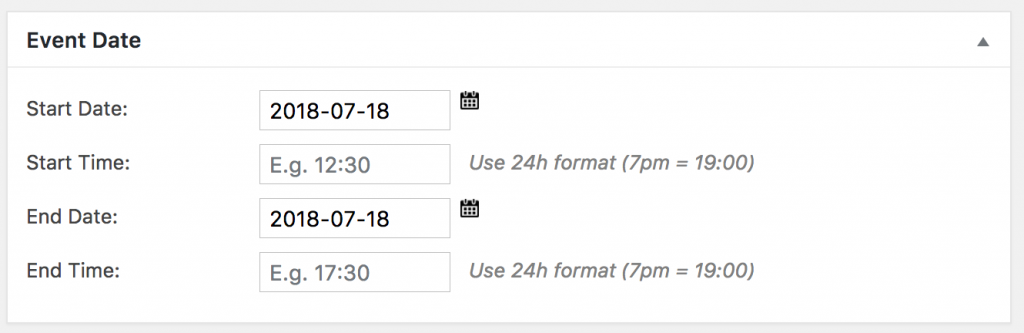
It is required that you select a starting date. By default, the ending date will be the same. Starting and ending time are optional.
Category
Every event can be assigned to a category. You can use these categories to display different events on different pages.
When editing an event, select or create the category you would like to assign to it.
On the page where you add the “Event Calendar” element to display events, select the category of events you would like to show.
Location
If you wish to link your event to a specific location, you may do so by selecting the location in the dropdown menu.

If the location does not exist yet, finish editing your event, save it, and go to Events > Locations in the admin menu. There, add a new location.
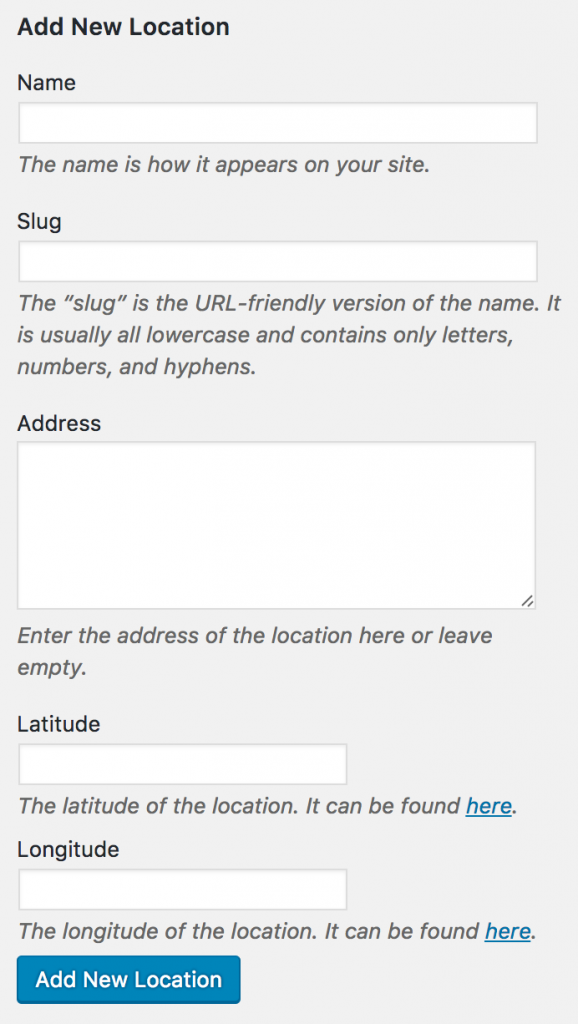
- The slug is optional (it is generated automatically based on the location name).
- The latitude and longitude will allow the website to display a Google Map on the event page.
Registration Form
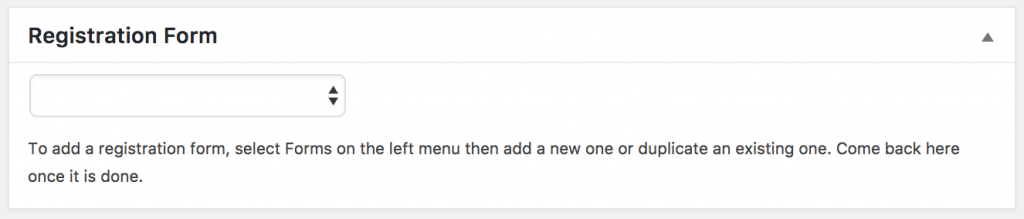
If you are using the built-in form system (rather than SalesForce or any other solution), you can select the form to attach to this event. If you do not have a form for this event yet, you can skip this step and come back to it at a later stage.
Event full?
In case your event is full, you can simply check the box there. It will disable the display of the registration form, as well as visually mark the event as full on the list of events.
If you are using the built-in form system, and have set a limit of registrations to that form, this box will check itself automatically once the limit has been reached.