
As you may already be aware by now, your website allows your visitors to register to you Mailchimp newsletter.
If you have provided us with your Mailchimp API key at the beginning, then the newsletter form is already linked.
If not, you need to do the following:
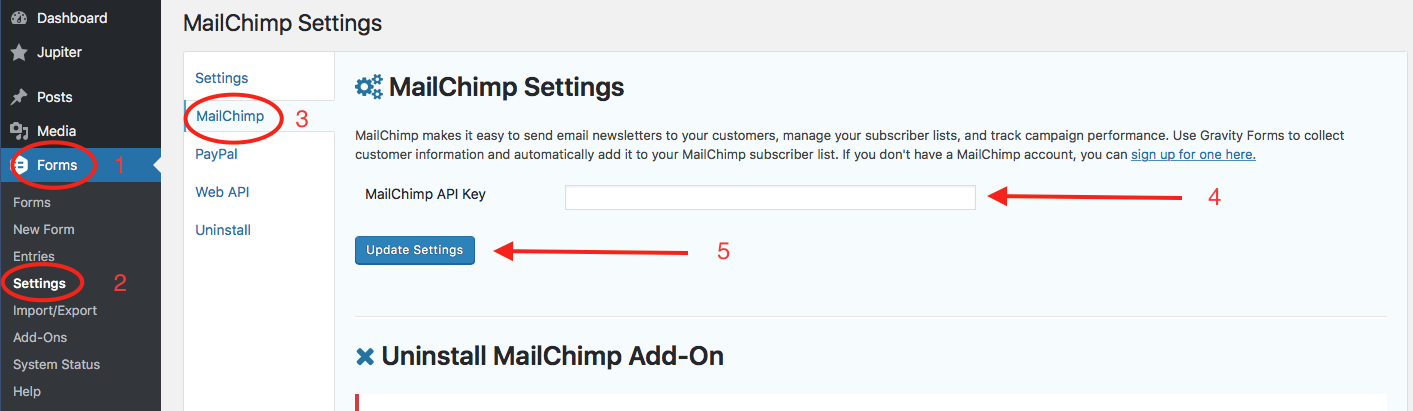
- Go to Forms
- Go to Forms > Settings
- Go to Forms > Settings > MailChimp
- Enter your API key (if you do not have a Mailchimp API key, check Advanced > How to get my MailChimp API Key)
- Update Settings
Once this is done, you still need to link the specific form to Mailchimp.
To do so, select the Newsletter form (or any other form you would like to link to MailChimp) by going to Forms > Forms > Newsletter > (while your mouse is over) Settings > Mailchimp
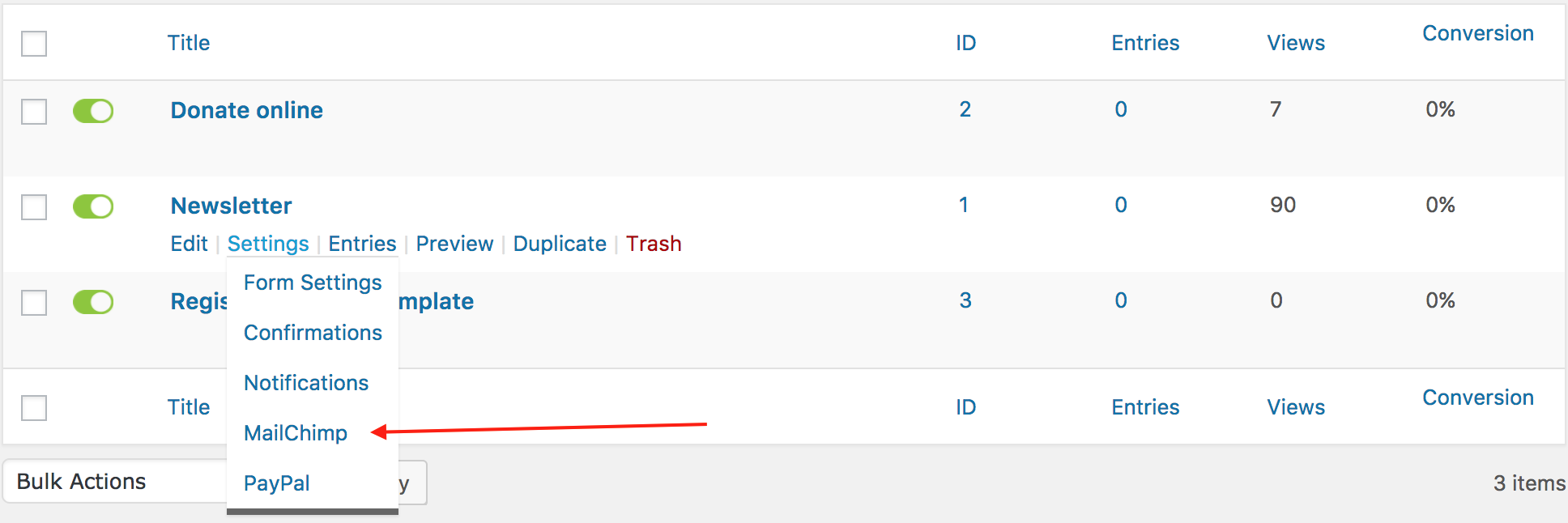
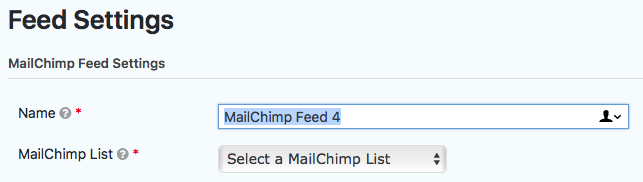
Normally, you won’t have any MailChimp Feed and need to create a new one.

Doing this, if your MailChimp account is properly configured, you will see a dropdown menu with the list of Newsletter lists that you have on MailChimp.
Once you select the list, just map the fields that need to be mapped, update the settings and you are done. The fields to be mapped may differ depending on how you configure your MailChimp list (on the MailChimp side that is).
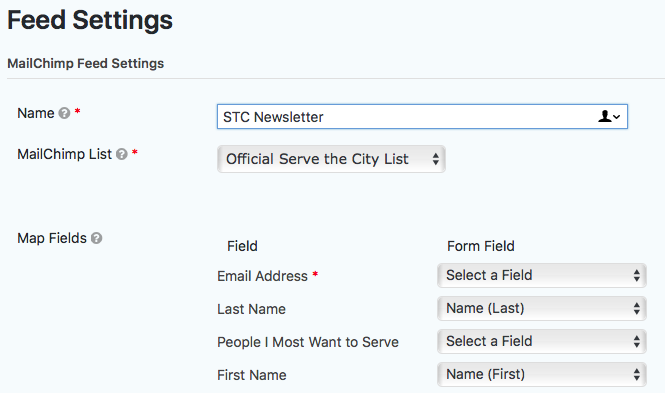
Note: once you configured Gravity Forms for MailChimp, you will only need to configure the Feed for all future forms you want to link to MailChimp.