
Visual Composer is a powerful editing tool for WordPress, allowing you to create complex layouts.
To simplify, Visual Composer (VC) works with rows, columns, and content blocks.
Starting with a blank page, you have the possibility to add an element (block), a shortcut to the basic text block, or load a template (See Visual Composer – Templates). There is also a link to the knowledge base of Visual Composer, which is more detailed than the present one on this specific matter.

Once you decide to add an element, you will have multitude of options. It is impossible for us to explain how each of these options are working. We advise you to try them on a test page to see how they work.
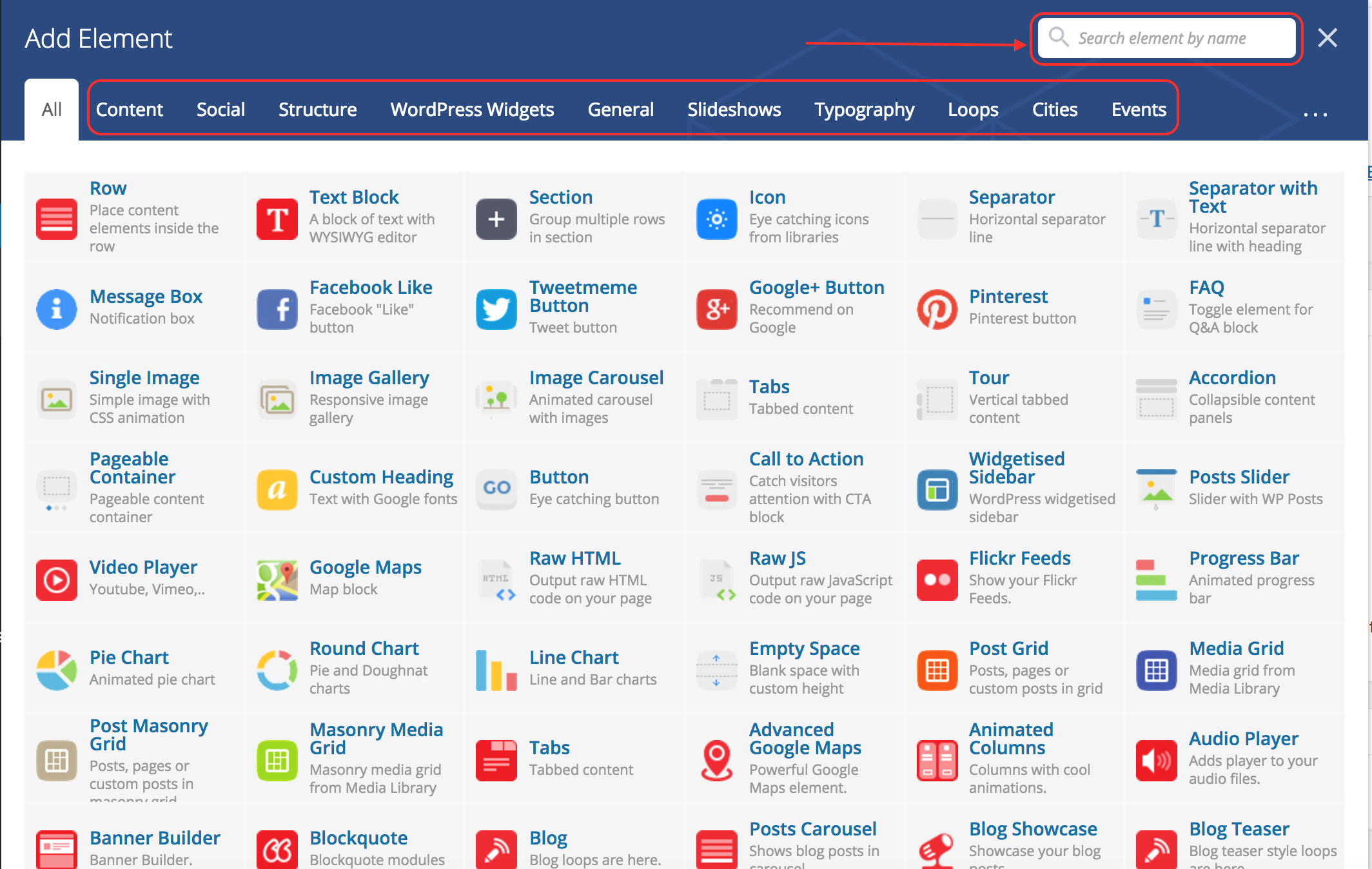
You have the possibility to search for a specific content block, or to browse them by categories.
Here are a few of the content blocks available:
- Row
A row is by default added if you add a content block out of a container (row / page section). It can be divided in columns. - Text block
A text block is the default content block, it is basically the same as the content editor in the Classic Mode. - Tabs
Allows to create tabbed content. - Accordion
Allows to create content that displays like an accordion. - Buttons
- Google Maps and Advanced Google Maps
Allows to insert a Google Map in the page. - Raw HTML
Allows you to add plain and simple HTML code. - Blog
Allows to display Posts with different options. - Clients
Allows you to display the logos of your partners. - Fancy title
Allows you to add a title with a lot of options. - Gravity Forms
Allows you to insert a form. - Cities Map
Displays a map of the different cities (useful for a national website). - Cities Listing
Displays a fancy list of cities (useful for a national website). - Event Calendar
Displays the list of upcoming events on your website.