
If you can come up with the words in your language to create such a design, we would be happy to help depending on our availability at the moment of the request.
If your website is multilingual…
If your website uses multiple languages, please note that the Single Image shortcode (see picture) is not translatable and will be the same for all languages.
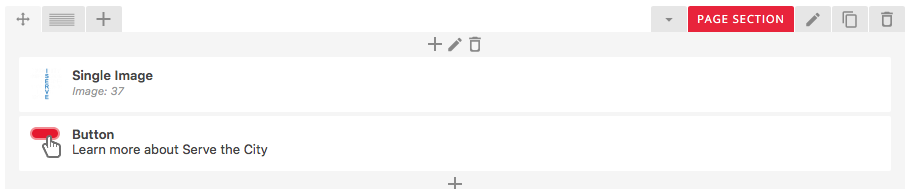
To be able to have a different image in different languages, you will need to use a little trick. Hopefully you won’t need to use it too often as most images are “speechless”. 🙂
First, delete the Single Image element.

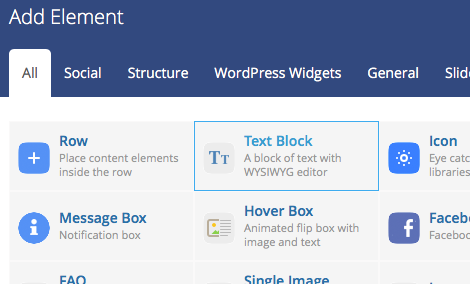
Then, add a new element in the section by clicking the + icon.

Select Text Block in the menu that appears…
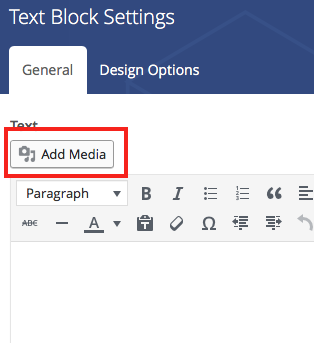
Click on Add Media…
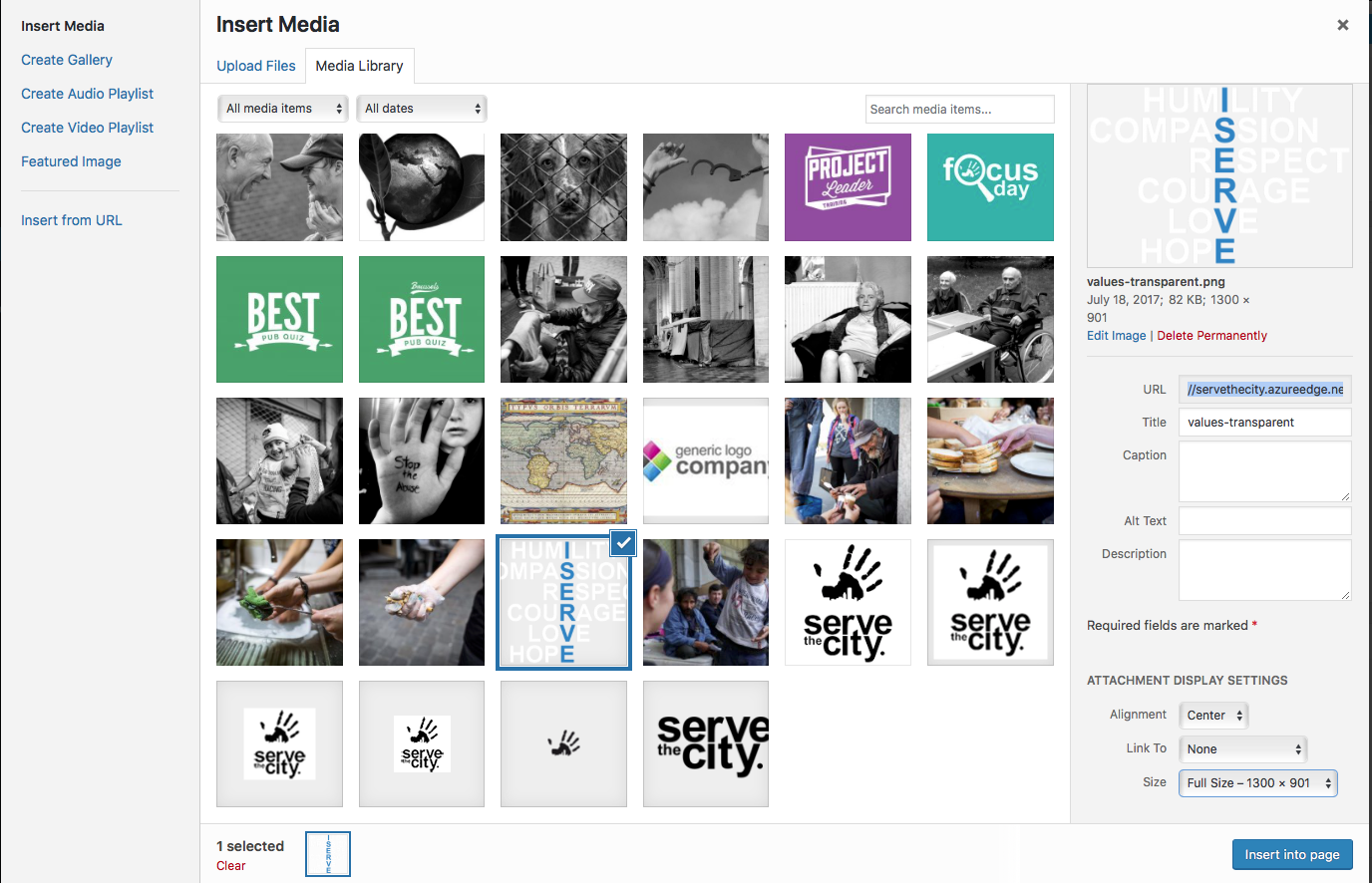
Select your ISERVE image (or upload one by dragging and dropping it on top of the Media interface) and make sure the size is “full” and alignement “center”, then click Insert into page.
Scroll down the Text Block window and put “retina” in the Extra Class Name field, then click Save Changes.
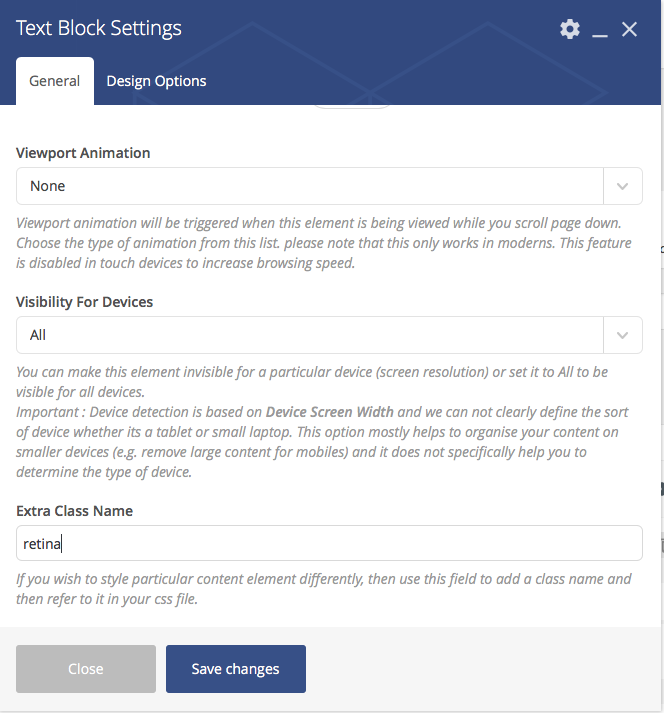
Now, Update your page without checking the box.
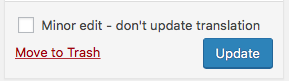
Once this is done, you can finally update your translations.
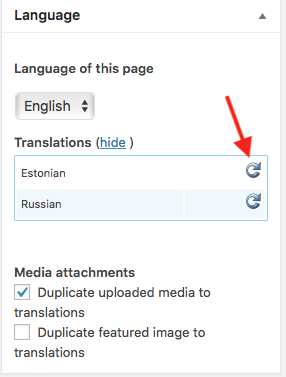
Scroll the translation editor until you get to the new text block containing your image. If it is not done already, copy the content from the original language (English) to the translation, using the small icon button.

On the translation box, click on the image, then click on the Edit button that appeared.
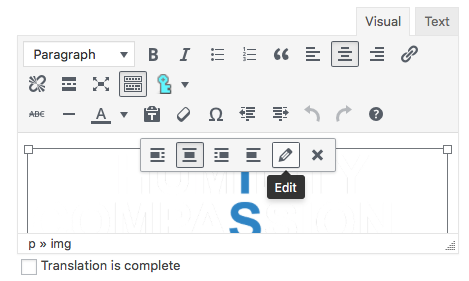
On the new window that opened, click on the Replace button on the right.
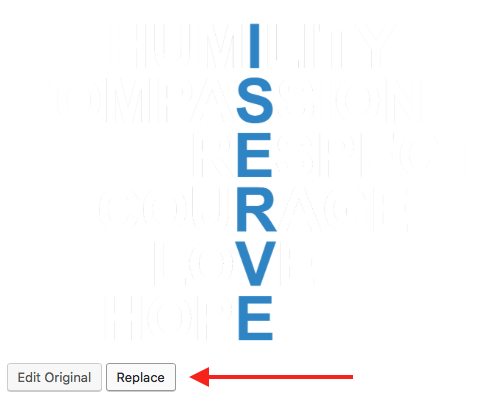
Select or upload your new picture, making sure it is in full size and centred, then save, and mark your translation as complete. Then save the translation.
There you go, you have a different ISERVE image depending on the language.