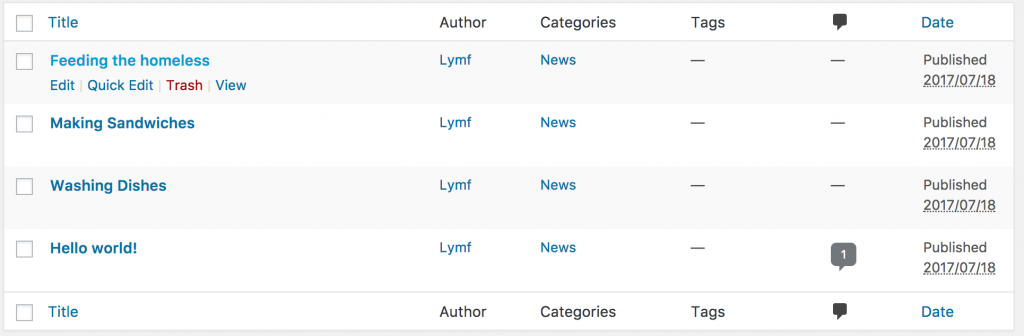
Your news / articles / stories will be referred to as “Posts”.
Add Post
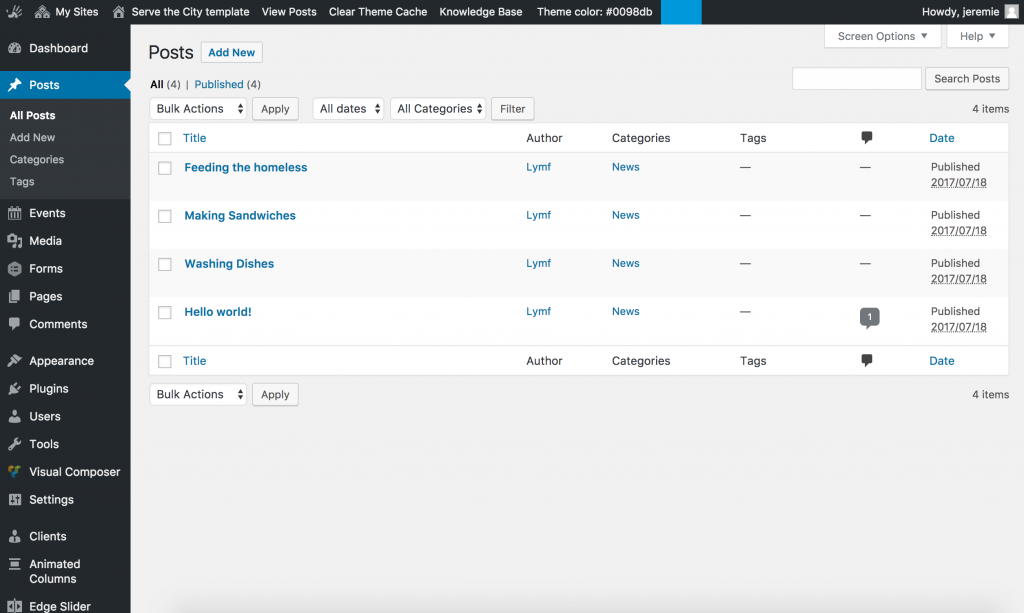
To add a post, click on the “Add New” link, then fill the different fields.
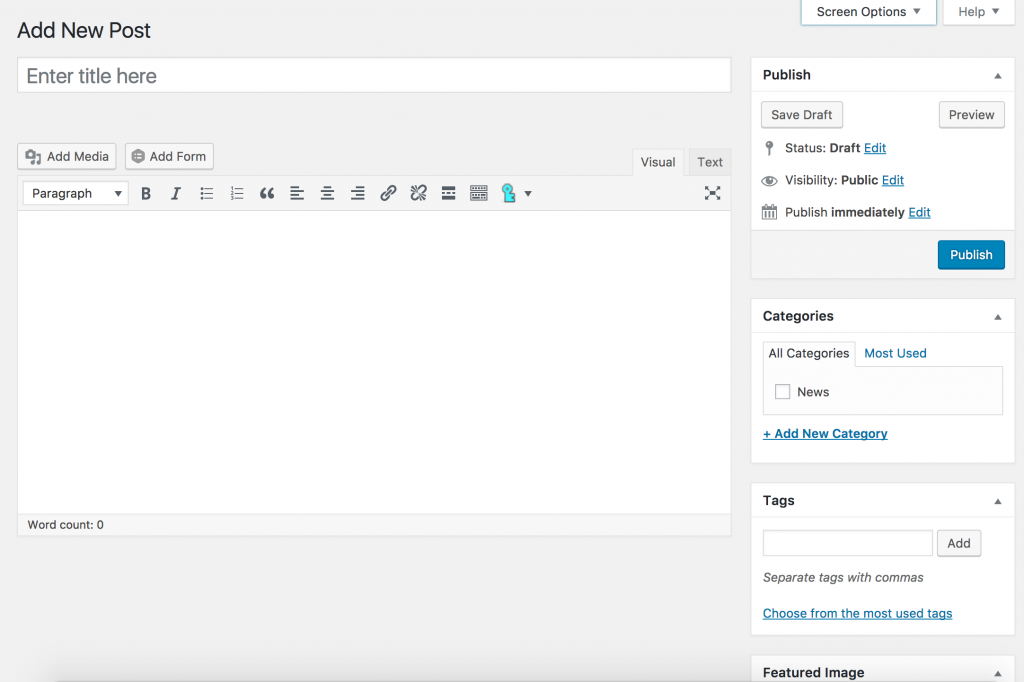
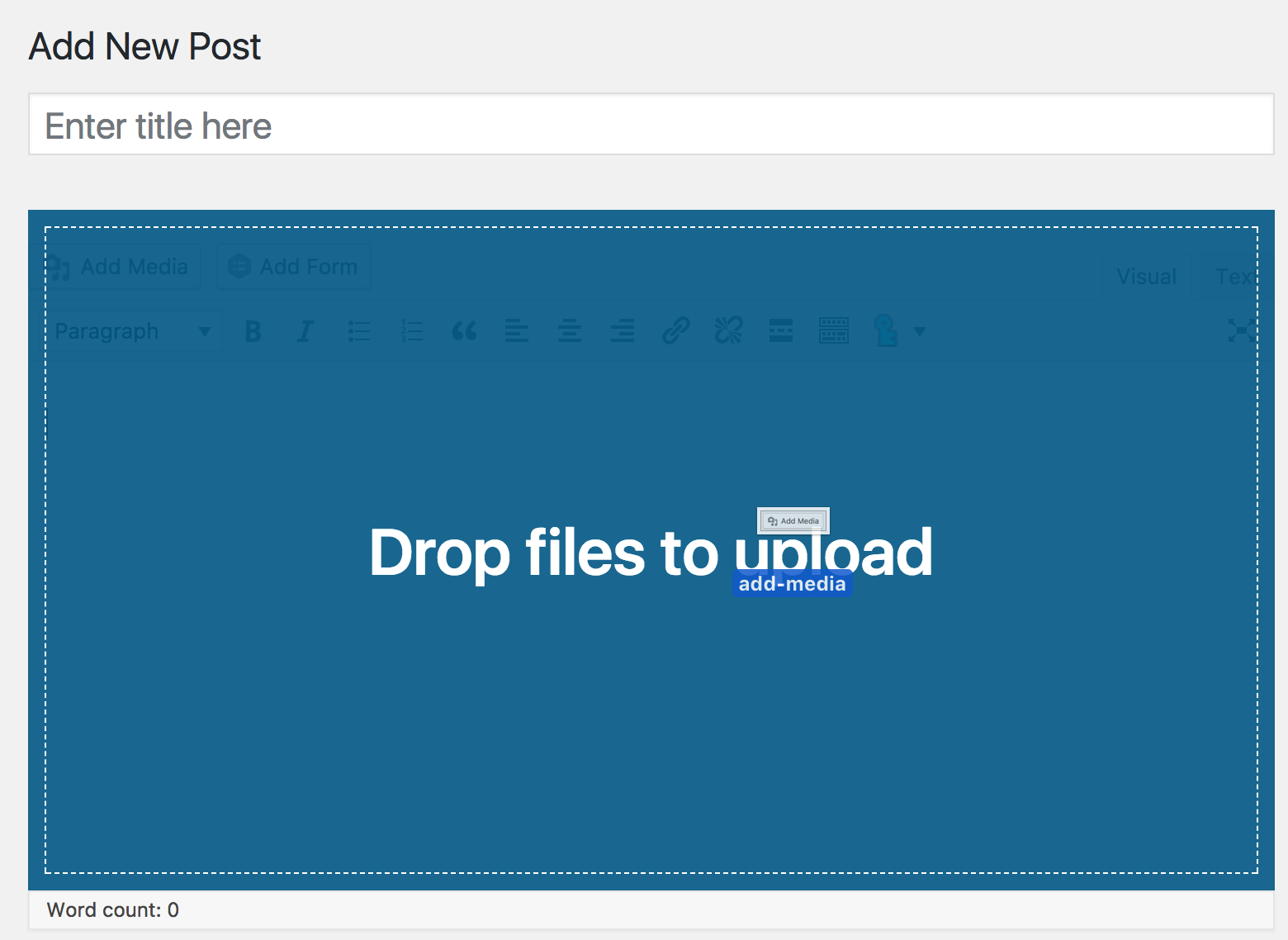
Simply type / paste your title and content in the ad hoc fields. You can also insert images / files in the content. To do so, either click on the “Add Media” button above the field and follow the instructions or drag and drop the file from your computer right over the content field.
Categories & tags
By default, the post will be added to the News category, unless you decide to add it to another one (which you will have to create).
Categories are hierarchical. This means they can have parents and children. A good use of categories would be for example “News”, “Story”, “Press release”.
You can also add tags to posts. A tag is similar to a keyword, a topic. This is optional but an example would be for example “Refugees”, “Project day”, …
Featured image
You can add a featured image to the post. This image will be used on the front end to illustrate the article.
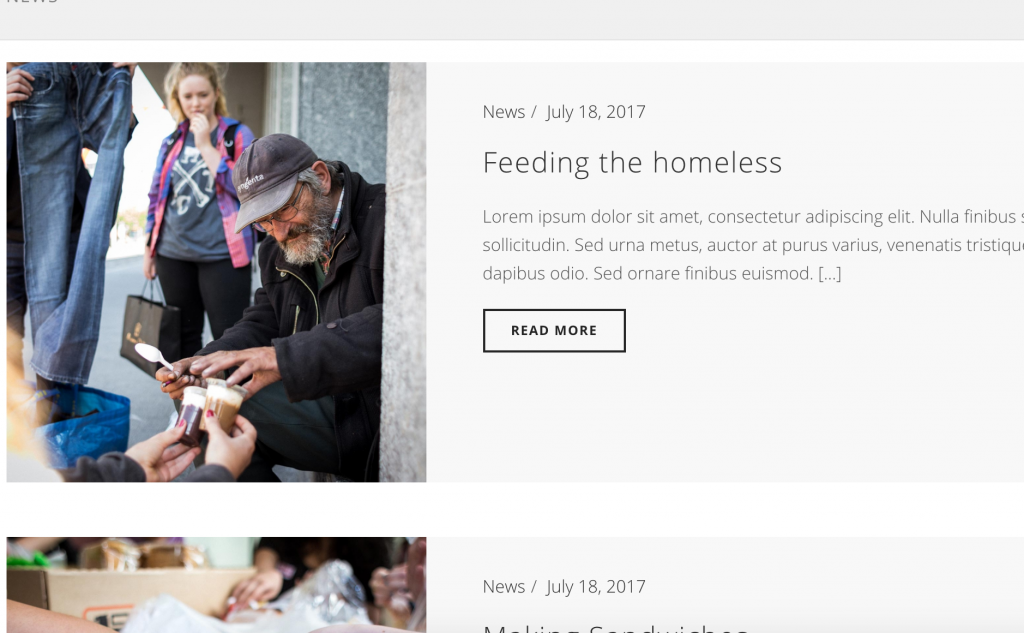
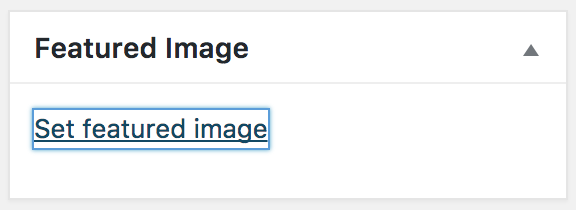
To do so, click on the Featured Image link, and select / upload the image you would like to use.
Publishing
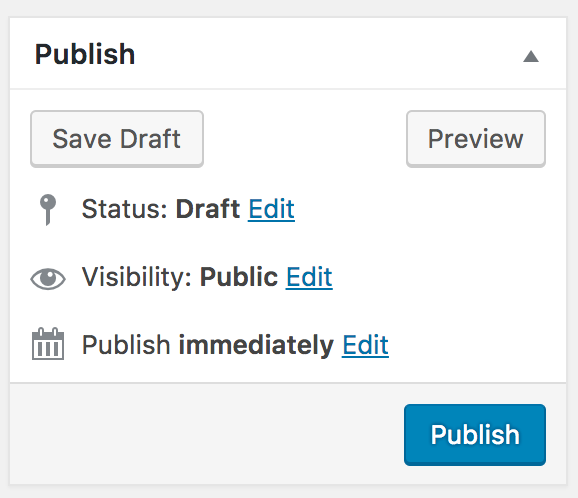
To publish a post, simply click on the publish button.
You can if you want preview the post before publishing, or save it to publish later. You can also modify the date at which the post is published.
Note: If you are setting a date in the future, your post will only be visible when the date is passed (e.g. A post with a publishing date for the 1st January 2029 at 1pm will only be visible after the 1st of January 2029 1pm. This allows you to plan news releases in advance if you are away at the moment you would like it to go online).
Edit post
To edit a post, simply click on Edit while hovering the post.